Licensing Explained
Purchasing a License
VirtFusion is licensed on a per cluster basis and any hypervisors within your cluster should be configured within your license. This means you will only require one license key.
Options
Depending on the license type, the following license options are:
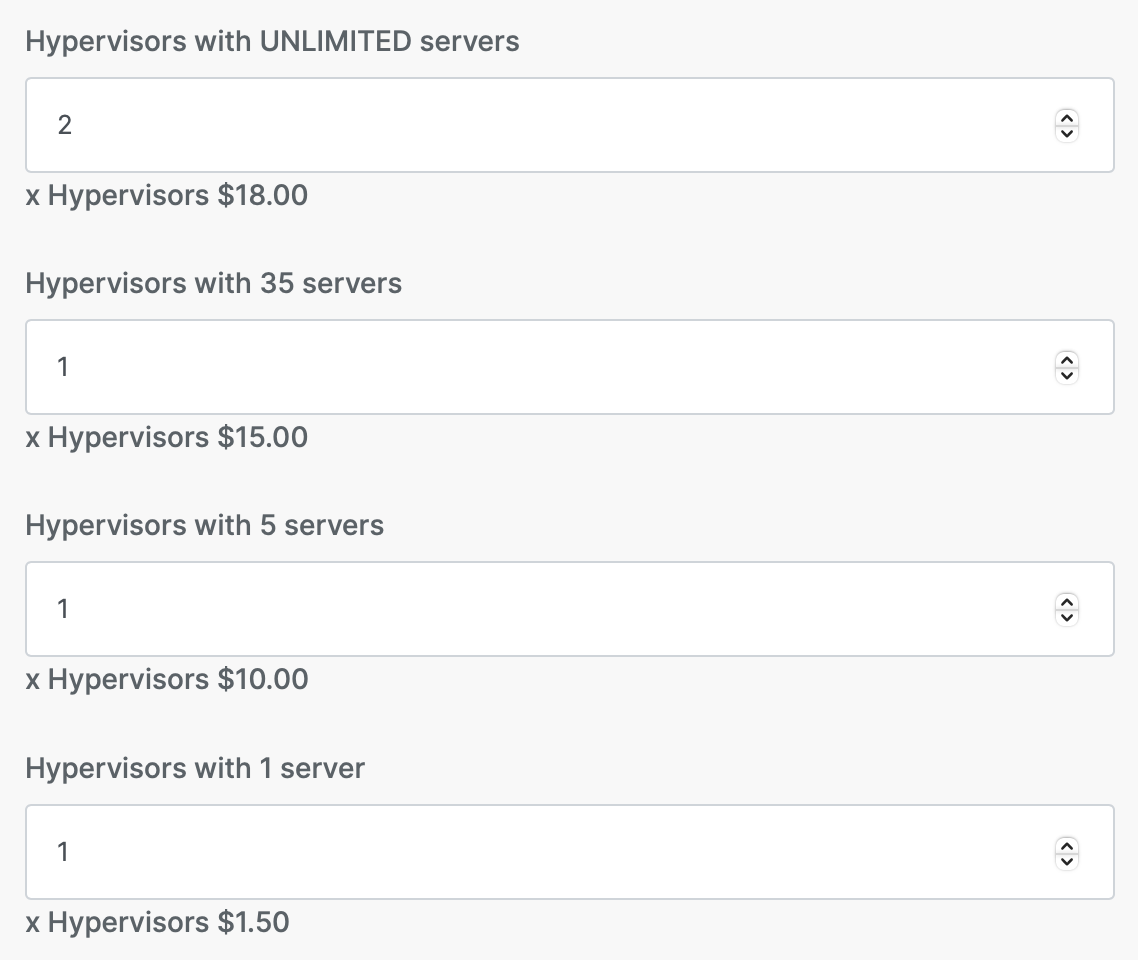
- Hypervisors with UNLIMITED servers - This option allows as many VMs as you would like on the hypervisor.
- Hypervisors with 35 servers - This options allows a maximum of 35 VMs on the hypervisor.
- Hypervisors with 5 servers - This option allows a maximum of 5 VMs on the hypervisor.
- Hypervisors with 1 server - This option allows a maximum of 1 VM on the hypervisor.
- Branding Removal - This option removes the VirtFusion branding from the control server.
Example
This is an example if you have 5 hypervisors:
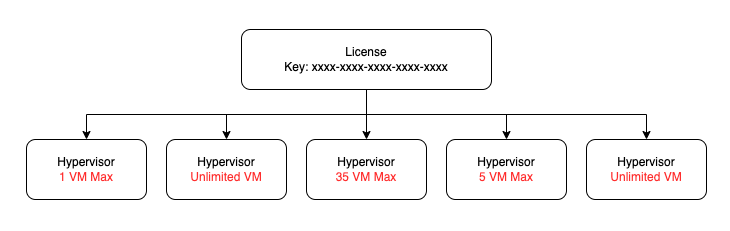
2 hypervisors can host unlimited VMs, 1 a maximum of 35 VMs, 1 a maximum of 5 VMs and 1 a maximum of 1 VM.
And the license order form for the above example would be:
Upgrading or Downgrading a License
You may upgrade or downgrade your license at any time (as long as no invoices are pending payment).
To modify your license, you will need to login to your account.
Once logged in, navigate to your license and click the Change Configurable Options button.
On the next screen you will see your current options and also options that are not currently set on your license.
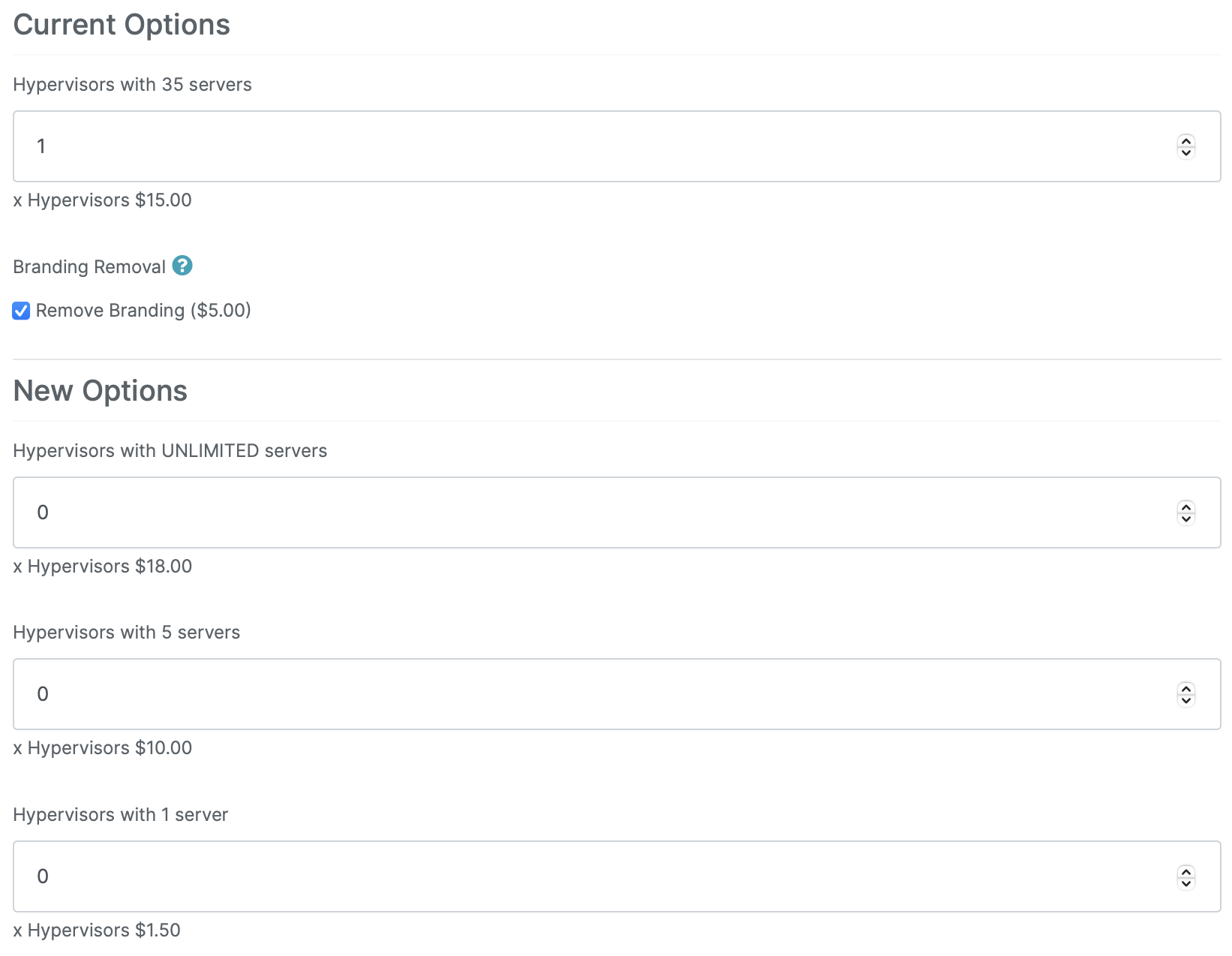
You can now change the options to fit your new requirements. Once you are happy with your changes, click the Review button to view the cost of the changes before you commit.
Re-issuing a License
Due to licenses being locked to your control server, we have made it possible to unlock the license if you need to move your control server to a new location.
To unlock your license, you will need to login to your account.
Once logged in, navigate to your license and click Manage License. You will see an Option to Reissue. Just tick that and press Save.
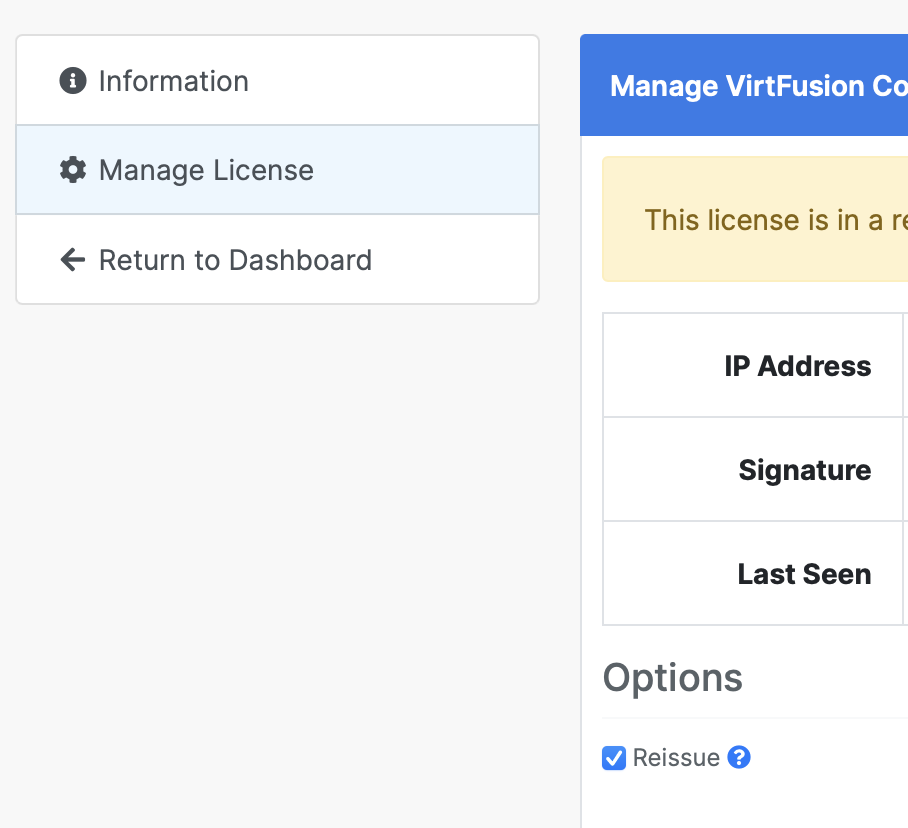
Be aware that a limited number of re-issues can be performed per license. If your re-issue option is locked, you should contact support to have your license reset.
Account Limits
We actively monitor account creations and cross-check license information across multiple accounts. If a match is detected, licenses may be automatically cancelled without notice. To avoid issues or disruptions, please do not create multiple accounts. Maintaining a single account helps ensure compliance with our licensing policies and smooth operation of your services.
We may impose a limit on the number of licenses allowed under a single account. If you reach this limit, you will need to submit a billing support ticket so we can review your situation and work toward a resolution.
My License Won't Validate
License validation requests are rejected if the control server clock is out of sync by more than 60 seconds.
RHEL / Rocky / Alma
Check current status
timedatectl
Enable NTP sync
timedatectl set-ntp true
Force immediate sync
chronyc makestep
Or if using ntpd
systemctl stop ntpd
ntpdate pool.ntp.org
systemctl start ntpd
Verify
timedatectl
Debian / Ubuntu
Check current status
timedatectl
Enable NTP sync
Force immediate sync
systemctl restart systemd-timesyncd
Or if using chrony
chronyc makestep
Or if using ntp
systemctl stop ntp
ntpdate pool.ntp.org
systemctl start ntp
Verify
timedatectl